
Keeping your old phone is usually worth it if it still powers on, holds a charge for a reasonable part of the day, and runs the apps you actually need. Replacing it is only a must when it stops getting security updates or can no longer do the job you need from it.
Most people upgrade long before their phone is really finished. A phone that feels slow is often just carrying a few years of app updates and stored files, and that can be fixed. Before you buy anything new, check three things: whether the phone still gets system updates, how much battery life you get on a normal day, and whether the apps you rely on still open without crashing.
There is also a money side. A phone you already own costs you nothing to keep using, and a good case and screen protector cost far less than a new handset. If you do decide to sell or pass it on, a phone in good working order usually sells for more than one that has been left to fall apart in a drawer.
Some people keep an old phone for a different job. It can become a dedicated music player, a bedside alarm clock, a backup phone for travel, or a device for a child who only needs calls and messages. Just know that phones with a non-removable battery and a swollen back panel are a fire and burst risk, so stop using them and take them to a proper battery recycling point.
If your old phone has become too limited, a basic flip phone or simple big-button phone can be a good option for someone who mainly wants calls and texts. For example, the Uvital Big Button Phone for Seniors, White, with 2 Speed Dial Keys, is a simple phone built around calling. Check the maker's listing for the full set of features before you buy.
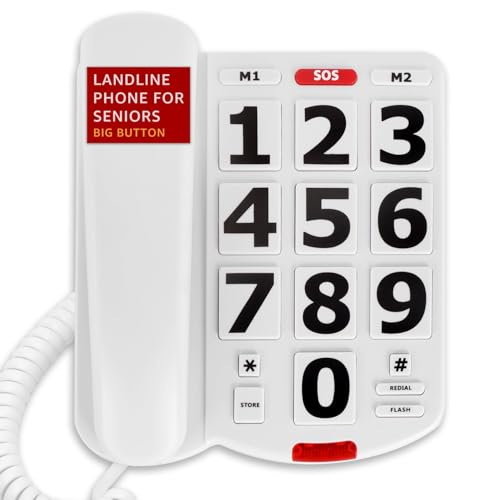
Uvital Big Button Phone for Seniors, White, 2 Speed Dial Keys
A corded landline phone with big buttons, two speed dial keys and an SOS button for easy calling.
Product information
Our review: 3.8 out of 5
Product links
Clearing Out Space and Slowing Battery Drain
Your phone stores a lot of stuff you never look at again. Old photos, cached app data, downloaded videos, and leftover files from apps you deleted months ago all take up room. When storage gets tight, the phone has less space to work with, and that can make everything feel sluggish.
Start with the easy wins. Open your photo library and look for duplicate shots, screenshots you no longer need, and blurry pictures from when you were learning the camera. Move the good ones to a cloud service or a computer, then delete them from the phone. Next, go through your downloads folder and any saved videos. Those files are often the biggest space hogs.
Your phone also keeps a cache of data for apps, and some apps let you clear it without losing your account. On many Android phones, you can open Settings, go to Apps, pick the app, and tap Storage to find a Clear cache option. On an iPhone, the offload option in Settings under General and iPhone Storage removes an app but keeps its documents. Menus change between versions and brands, so look for these names in your own settings.
Battery drain is often caused by a few apps running in the background. Check your battery usage screen to see which apps used the most power over the last day or week. If you see an app you barely open near the top of the list, try turning off its background refresh or location access. Social media and shopping apps are common culprits. You can also lower screen brightness, since the display is usually the biggest power user on a phone.
If your battery seems weaker than it used to be, check the battery health screen if your phone has one. On iPhones, that is under Settings, Battery, then Battery Health. Many Android phones show something similar under Battery or in the manufacturer's device care menu. A lower capacity number means the battery is wearing out, and a battery replacement from the maker or a repair shop may be a better fix than buying a new phone. Only have a battery swapped by a reputable shop, and never try to puncture, pry, or heat a battery yourself because lithium batteries can catch fire.
Software Updates and Settings That Make a Difference
Software updates are one of the easiest ways to get more life out of an older phone. Security patches fix holes that hackers and scammers look for, and system updates sometimes make the phone run smoother. Before you start, make sure the phone is plugged into Wi-Fi and has enough charge to finish the job. Your phone will usually tell you when an update is ready, but you can also check by hand. On an iPhone, go to Settings, then General, then Software Update. On many Android phones, look under Settings, then System, then System update, though the exact menu name changes by brand.
Keep in mind that some older phones stop getting updates after a certain point. If your phone no longer shows a system update option, or the maker's support page says it has reached the end of its update window, you will need to rely on other settings to stay safer. Check the maker's website for the official support date for your exact model, since this depends on the brand and the phone.
Some settings do more for speed and battery than you might expect. Try turning off animations and transparency effects. On Android, these live under Developer options, which you can reach by tapping the build number seven times in the About phone menu. On an iPhone, go to Settings, then Accessibility, then Motion, and turn on Reduce Motion. These changes make the screen feel snappier on older hardware, and they cut a little work for the processor.
Auto-download and auto-update settings also deserve a look. If your phone downloads app updates over mobile data in the background, you may see extra battery use and data use you did not plan for. Set app updates to Wi-Fi only in your app store settings, and turn off automatic downloads for apps you rarely open. You can always update the important apps yourself when you have a good connection.
Finally, set a regular time to check for updates, maybe once a month when you charge the phone overnight. That habit keeps the phone secure without you having to remember it every week, and it stops update prompts from piling up into one long wait.
Simple Habits to Keep Your Phone Running Longer
Your phone does a lot of small things all day that wear it down, and most of them are easy to change. Good habits go a long way, and you don't need to be a tech expert to use them.
Try charging your phone between about 20 and 80 percent when you can. Lithium batteries don't like being run all the way down or kept pinned at full every single night. If you can, unplug it once it hits a high level, or use a charging schedule if your phone offers one. Keep it out of hot cars, sunny window sills, and hot pockets, because heat is one of the fastest ways to age a battery. Charging under a heavy blanket or pillow does the same thing, so put it on a hard, flat surface instead.
Restart your phone every week or so. It sounds too simple to matter, but a full reboot clears out memory that apps have been holding onto and stops small glitches from piling up. Most people only restart when something breaks, so making it a regular habit, like every Sunday night, keeps things running more smoothly.
Be picky about what you install. Every extra app takes up space, may run in the background, and can ask for permissions you never meant to give. Before you download something new, ask yourself if you will really use it next month. Delete the ones you forgot about, and remove widgets and live wallpapers you don't look at. Animated wallpapers in particular can take a bit of extra power.
Use a protective case and a screen protector, and handle the phone gently. A drop can crack the glass, damage the charging port, or loosen internal parts, and a cracked screen can let dust and moisture in. A basic case costs far less than a repair or a new phone. Keep the charging port clean with a dry, soft tool, and never poke metal objects into it, since that can cause a short.

Temdan Clear iPhone 17 Case with Screen Protector
A clear, slim case with a built-in screen protector and magnets that work with MagSafe chargers.
Product information
Our review: 4.0 out of 5
Product links
Finally, if your phone starts getting hot while you are only browsing or sitting idle, stop what you are doing and let it cool in a shaded spot. Heat can point to a failing battery or a stuck app, and it is worth checking your battery usage screen. If the back of the phone feels puffy or the screen lifts away from the frame, stop using it right away and take it to a battery recycling point rather than charging it again.

