
A smartphone fits into your day best when you decide what it is for before you start using it. Think about the few things you reach for most, like calls, messages, maps, photos, and payments, and set the phone up around those. Everything else can wait.
Most people use their phone at predictable moments: first thing in the morning, during a commute, at lunch, and right before bed. Pay attention to those moments for a few days. You will probably notice you check the phone out of habit more than need, and that is useful information.
Your daily needs also depend on how you live. A parent juggling school pickups may lean on the phone for calendar alerts and quick calls. Someone who works from home might use it mostly for two-factor codes and messages from the office. A student may care most about notes and a camera for whiteboard photos. Write down your top three uses and keep that list in mind when you shop.
When you are picking a phone, look at these buying factors first:
- Carrier or prepaid plan, and whether the phone is unlocked or tied to one network
- Screen size, since a bigger screen is nice for reading and video but harder to use one-handed
- Storage, especially if you take lots of photos or videos
- Camera quality for the kind of pictures you actually take
- Software updates, which affect how long the phone stays useful
Check the maker's specs or the listing for exact storage, screen, and update details. Do not assume a feature is included unless the product details say so.
Setting Up Your Phone for Daily Use
Once you have picked your phone, the first hour of setup does more for your daily routine than almost anything else. Take it slow and set things up in the order you will actually use them. Start with your Wi-Fi, your accounts, and the apps you open every day, then move on to the rest.
Start by putting your most-used apps on the first home screen and moving everything else into folders. Phone makers and most Android skins let you long-press an app to move it. Pick a single folder for games, one for shopping, and one for tools you rarely open. The goal is to make the screen you see when you unlock the phone match the things you do most.

Google Pixel 10a Obsidian 256GB Unlocked Android Phone
A tough, unlocked Android phone with a camera that does the thinking and a battery that lasts through the day.
Product information
Our review: 4.3 out of 5
Product links
Next, set up the lock screen so you can get to what matters without a fight. Choose a passcode or biometric unlock you can use quickly, then decide which widgets or lock screen items you want to see. A calendar preview, the weather, or a shortcut to your camera can save a few taps a day. If you use a fingerprint or face unlock, add a second finger or a backup look in case the first one fails, such as after a cold or with wet hands.
Don't skip the backup and sign-in step. Sign in to your Google or Apple account, turn on automatic backups, and make sure your photos are syncing. Write down your backup recovery details somewhere safe, away from the phone itself. If you lose the device or it breaks, you will be glad you did this during setup and not during a panic.
Last, check the accessibility and quick settings you will reach for often. Add a flashlight, a do-not-disturb toggle, or a hotspot shortcut to the quick settings panel so they are one swipe away. If you use the phone in a car, look up the driving or Do Not Disturb While Driving option in your settings. Exact menu names change between makers and software versions, so check your phone's manual or the settings search bar for the right wording.
Keeping Notifications and Battery Under Control
Notifications are the part of your phone that can quietly take over your day. Every buzz pulls your attention, and most of them are not urgent. The good news is that you can decide which apps get to interrupt you and which ones wait.
Start by going through your app list one by one and asking a simple question: would I want to know about this right now? A bank fraud alert, a text from your kid's school, or a call from a family member probably passes that test. A shopping app pushing a sale, or a game asking you to come back, usually does not. Turn off the notifications that don't pass. You can always switch them back on later.
Most phones also let you sort notifications into priority or silent groups. Look for options like Focus, Do Not Disturb, or notification summaries in your settings. Names and layouts change between makers and software versions, so check your phone's manual or search the settings for "notifications" if you can't find them. A common setup is to let calls from a short list of favorites come through while everything else waits quietly.
Battery life follows a similar pattern. Screen brightness and background activity do most of the damage, and both are easy to adjust. Turn on adaptive or auto brightness if your phone has it, and check the battery usage screen once a week to see which apps are draining power. If one app is using far more than the rest and you don't need it running all day, close it or limit its background activity.
A few other habits help. Avoid leaving your phone in a hot car, in direct sun, or under a pillow while charging, since heat wears batteries down faster. Use the charger and cable that came with your phone or a replacement the maker recommends, and avoid cheap cables that can overheat. If the phone gets very hot while charging, unplug it and let it cool before you use it again.
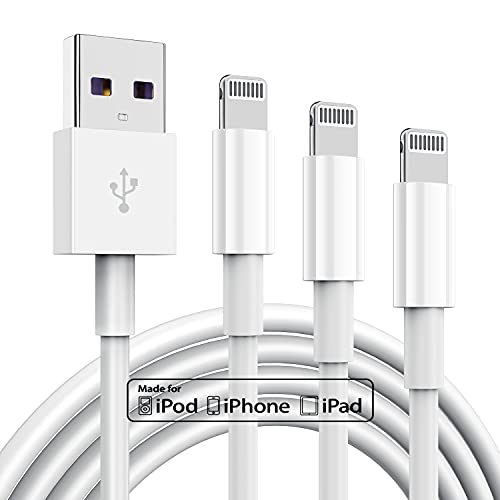
3 Pack Apple MFi Certified iPhone Charger Cable 6ft
A three pack of six foot Lightning cables with Apple MFi certification for charging and syncing iPhones and iPads.
Product information
Our review: 4.2 out of 5
Product links
Quick Habits for Making Your Phone Work for You
Most of the day-to-day wins with a phone come from small habits you repeat without thinking. Pick two or three of these and stick with them for a week before adding more.
Try a "phone-free start" for the first ten minutes after you wake up. Leave the phone face down on the counter, make your coffee or tea, and only then pick it up. You will notice fewer random scrolls and a calmer start. It sounds simple, but most people skip it because the phone is the first thing their hand finds.
Batch your checking. Instead of answering every ping as it lands, look at messages at set times, like during lunch and once before you leave work. Your phone's Focus or Do Not Disturb mode can hold everything back for you, and you can let urgent contacts through with a favorites list. You will still get the important stuff, just without the constant interruptions.
Use voice tools for quick jobs. Setting a timer, adding a reminder, or asking for directions with your voice assistant is faster than typing, especially when your hands are full or you are driving. Check your phone's settings to see which voice assistant it uses and turn on the "hey" wake phrase if you want hands-free use. Only use voice commands while driving when it's safe to do so, and keep your eyes on the road.
Build a simple weekly tune-up. Once a week, spend five minutes on your phone doing three things: deleting screenshots and downloads you no longer need, checking that backups finished, and looking for any pending software update. Doing this on a set day means you won't let it slide for months.
Finally, keep a short list of things to set up for travel or a new week, such as your boarding pass, a saved map, or offline music. Saving them ahead of time means you won't be hunting for signal when you need the information most.

